











How to create a free digital business card with a QR code
A simple, step-by-step guide to making a free digital business card with a QR code — what to put on it, how to share it, and how to get people to save your details in one tap.
To create a free digital business card with a QR code, pick a free maker, enter your name, job, phone, email and social links, add a photo and an accent colour, then publish to get a permanent link and QR code. You then share the link in your email signature and bios, and show the QR code in person. Here is the full process, plus what to include and how to get the most contacts.
💡 In one sentence
Fill in your details once, publish, and you get a link and a QR code you can share forever — people scan or tap, then save your contact in one step. New to the idea? See what a digital business card is.
What do you need before you start?
Almost nothing — just your basic details to hand: your name and job title, your phone number and email, links to your website and social profiles, and optionally a photo or logo. That is enough to publish a clean, professional card.
How to create a free digital business card (step by step)
- Choose a free maker. Pick a tool that gives you both a shareable link and a QR code at no cost.
- Enter your details. Add your name, job, phone, WhatsApp, email and the services you offer.
- Add your links. Website, Instagram, LinkedIn, a booking page or a portfolio.
- Personalise it. Upload a photo or logo and pick an accent colour so it looks like yours.
- Publish. You now have a permanent link (e.g. yoursite.com/you) and a matching QR code.
- Share it everywhere. Email signature, social bios, messages — and save the QR code to show in person.
What should you put on your card?
- Your name and job title at the top.
- Call, WhatsApp and email buttons.
- A “Save contact” button so people add you in one tap.
- A short line on what you do.
- Your links and, ideally, a QR code and a contact form.
How do you add a QR code?
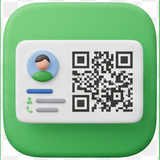
You usually do not have to do anything: most makers generate the QR code automatically when you publish. The code points to your card link, so anyone who scans it with their phone camera opens your page and can save your contact. You can then add the QR code to a flyer, a shop window, your van, or the back of a printed card.
How to share your digital business card
The more places your link lives, the more it works for you:
- Email signature — every email becomes a chance to be saved.
- Social bios — Instagram, TikTok, LinkedIn, WhatsApp.
- In person — show the QR code on your phone, or print it.
- Messages — paste the link in a reply right after meeting someone.
Tips to get more contacts
Lead with a clear photo and job title so people instantly know who you are. Keep your “Save contact” button visible. Put the QR code where people already look — a counter, a menu, a vehicle. And because the card updates instantly, refresh it whenever your offer or number changes, so you never share stale details. For the bigger picture, compare it with print in digital vs paper business cards.
FAQ
Can I create a digital business card for free?
Yes — free makers give you a permanent link and QR code with no printing cost. You only need your contact details to begin.
Do people need an app to open it?
No. The link opens in any browser and the QR code scans with any modern phone camera — no app required.
Create your free digital business card
Add your details, publish, and get your link and QR code in minutes — free.
Create my card for free →